

Installation Guide for Battersea Audio Plugins
Thank you for choosing Battersea Audio. Here is a quick guide for download & installation of our audio plugins.
- For Audio Plugins (Such as SHAPER), read the first set of instructions.
- For Kontakt Sampled Instruments, please scroll down to the next section.
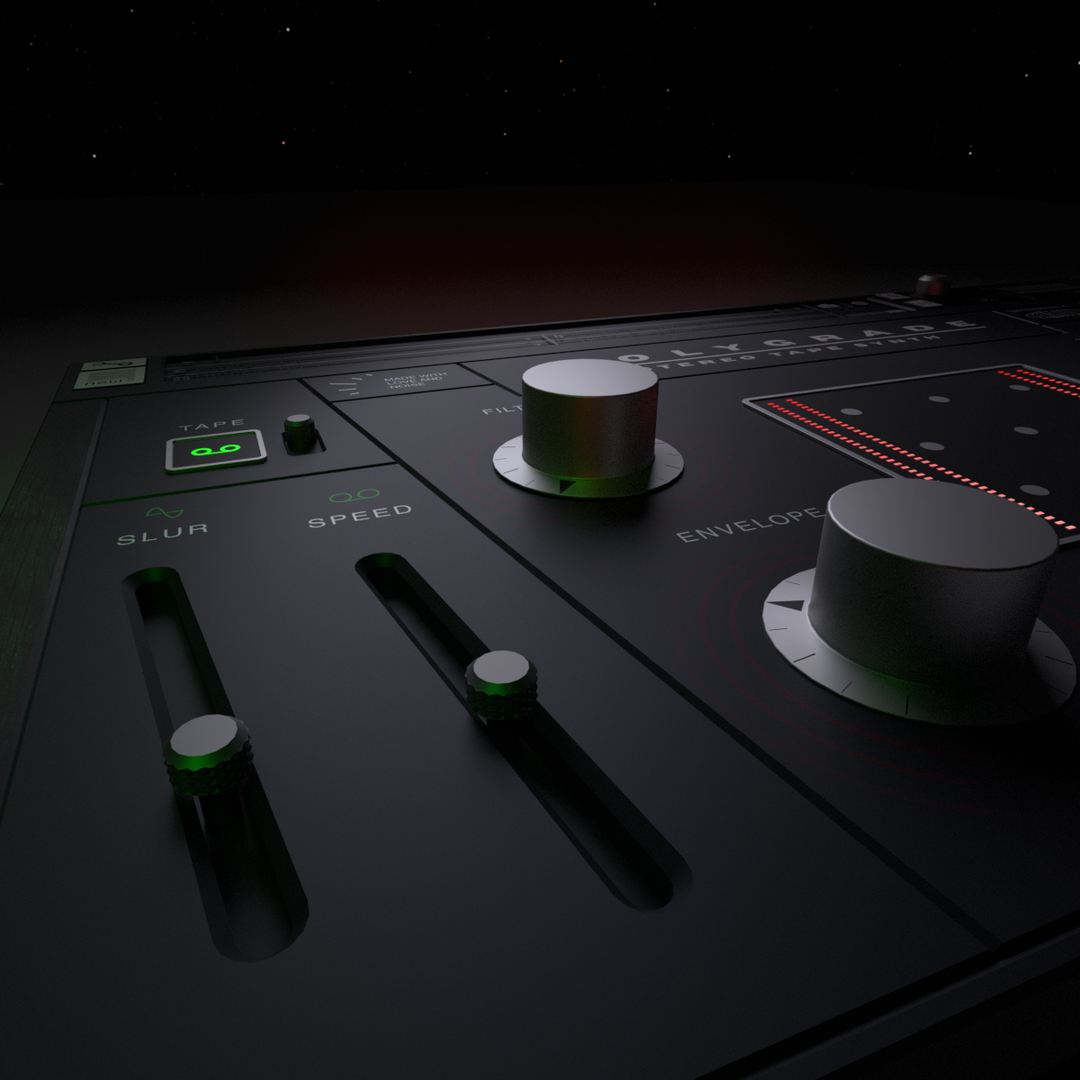

Audio Plugins (Such as SHAPER)
1. After completing your order, you’ll receive an email containing your serial number. Copy the serial number.
2. Download the correct Shaper Step Tool installer for your computer:
Download Shaper Step Tool for macOS
Download Shaper Step Tool for Windows
3. Open the downloaded installer and follow the on-screen instructions.
4. Open your DAW and load the plugin (VST3 or AU, depending on your system).
5. When the plugin window appears, enter your serial number exactly as provided in your confirmation email.
6. Once activated, you're all set — enjoy creating with your new plugin!
Kontakt Sampled Instruments
1. After completing your order, you’ll receive an email containing your instrument’s serial number. Copy this serial number.
2. If you don’t already have it installed, download and install the Native Access application from the Native Instruments website.
3. Open Native Access and click the Add Serial button in the bottom-left corner. Paste your serial number into the pop-up box.
4. Once accepted, Native Access will automatically begin downloading your instrument.
5. When the download is complete, ensure you have a supported version of Kontakt or Kontakt Player installed (also available via Native Access).
6. Open your DAW and load Kontakt from your plug-ins list.
7. Your new instrument will now be available inside Kontakt — start creating!